Adding employees correctly ensures attendance tracking, permissions, and onboarding work smoothly.
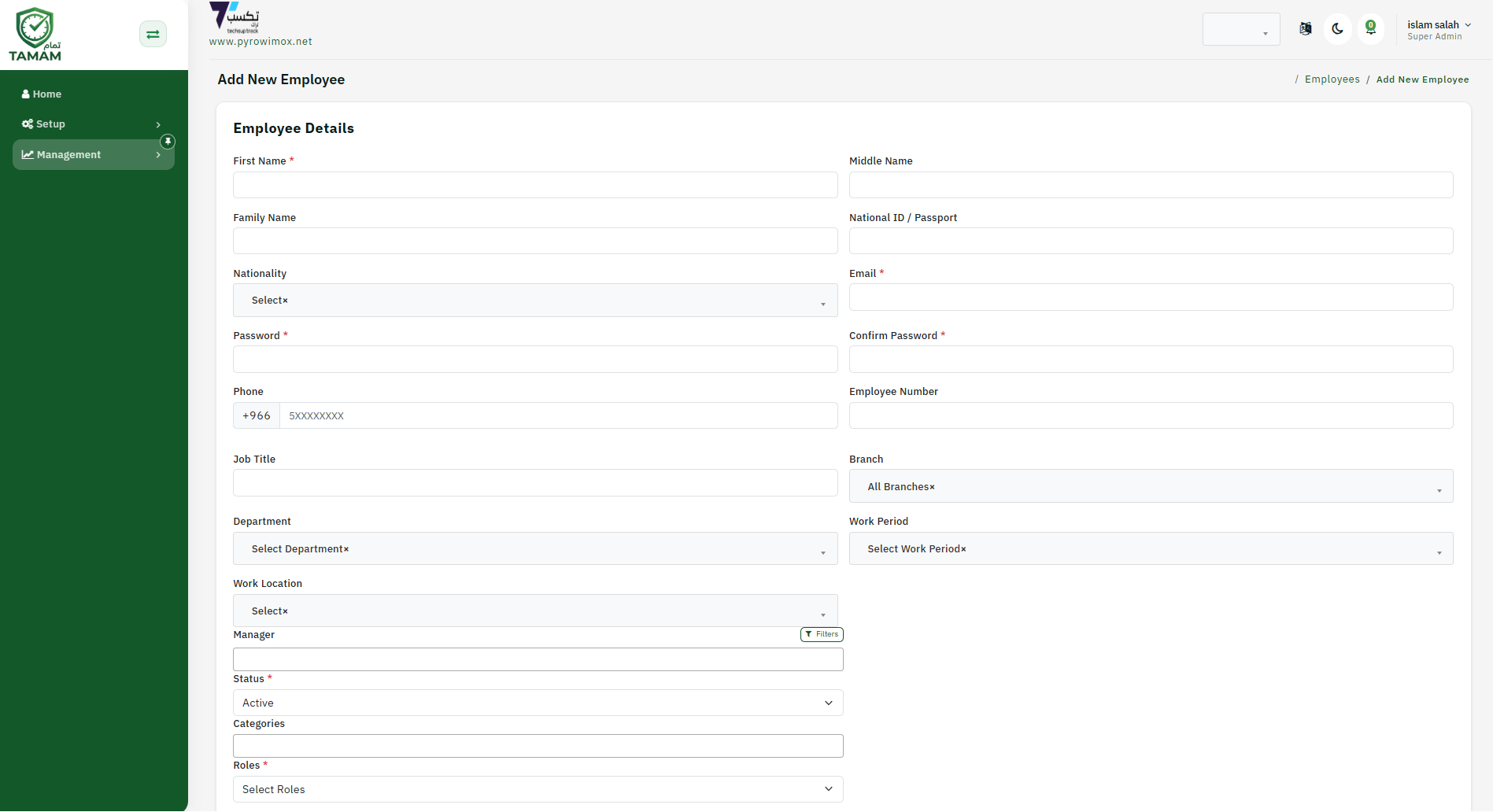
Step 1: Open Employees
From the admin dashboard, go to the Employees area to manage user records.
Step 2: Start a new employee record
Click Add Employee and fill in name, email, ID number, and contact details.
Step 3: Assign department and location
Choose the employee department, location, and reporting manager during setup.
Step 4: Set roles and permissions
Choose the user role and access level so the employee can use the appropriate Tamam features.
Step 5: Save and invite
Save the employee record and optionally send an invitation so the employee can complete onboarding.
Tip: Verify contact details and role settings before saving to avoid permission issues later.