Appearance settings help your organization keep a consistent visual identity in Tamam.
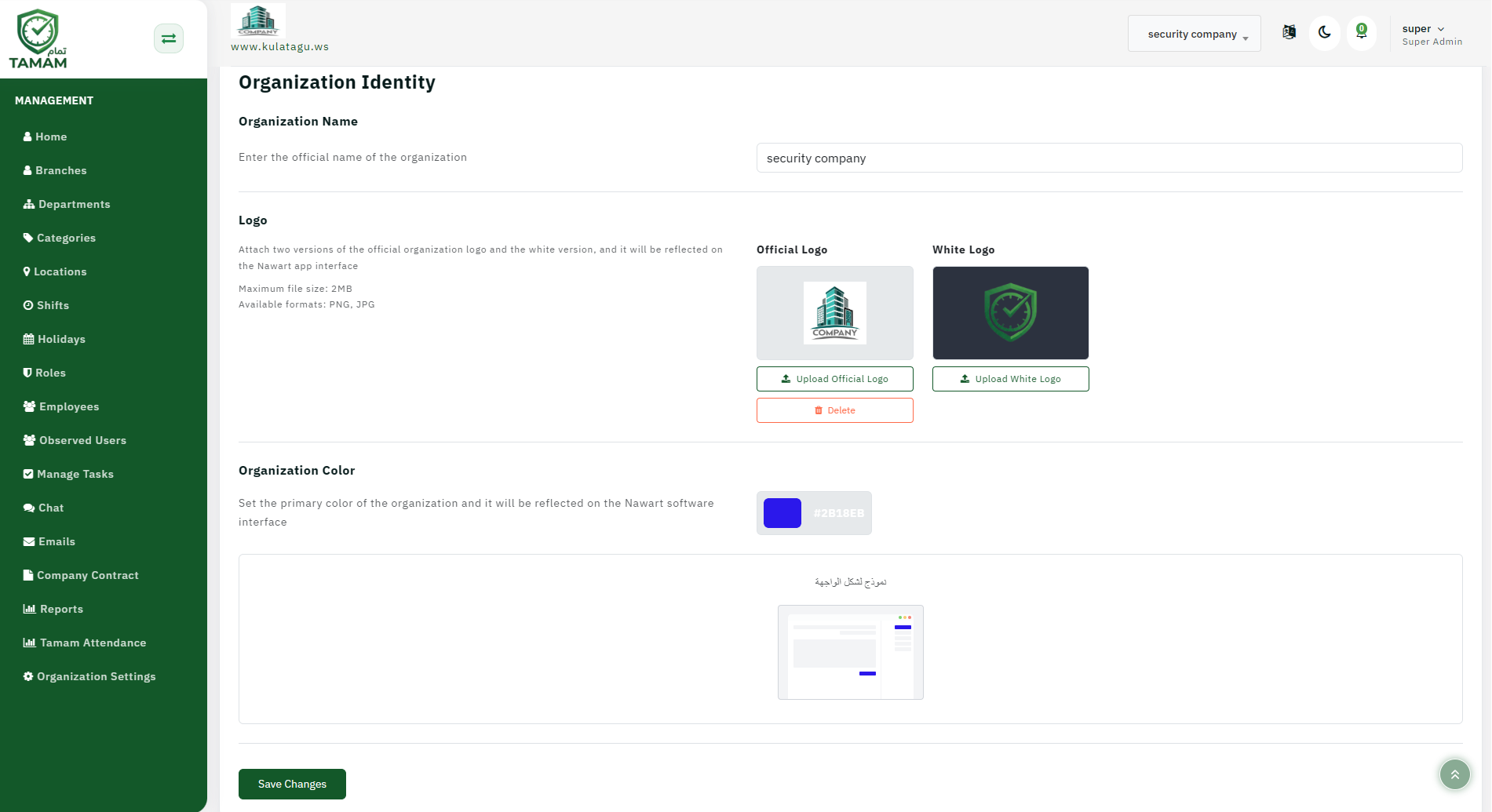
Step 1: Access appearance settings
Open the Appearance or Branding settings in the admin console.
Step 2: Upload your logo
Upload your organization logo and choose how it displays in the app and reports.
Step 3: Adjust colors
Select accent colors or theme preferences if available.
Step 4: Preview changes
Preview the new appearance on desktop and mobile screens.
Step 5: Save and verify
Save the appearance settings and confirm the branding updates are visible throughout the app.
Tip: Use the same logo and colors across Tamam to make the experience familiar for employees.