This guide explains how to assign an employee to more than one work location so attendance is tracked correctly across sites.
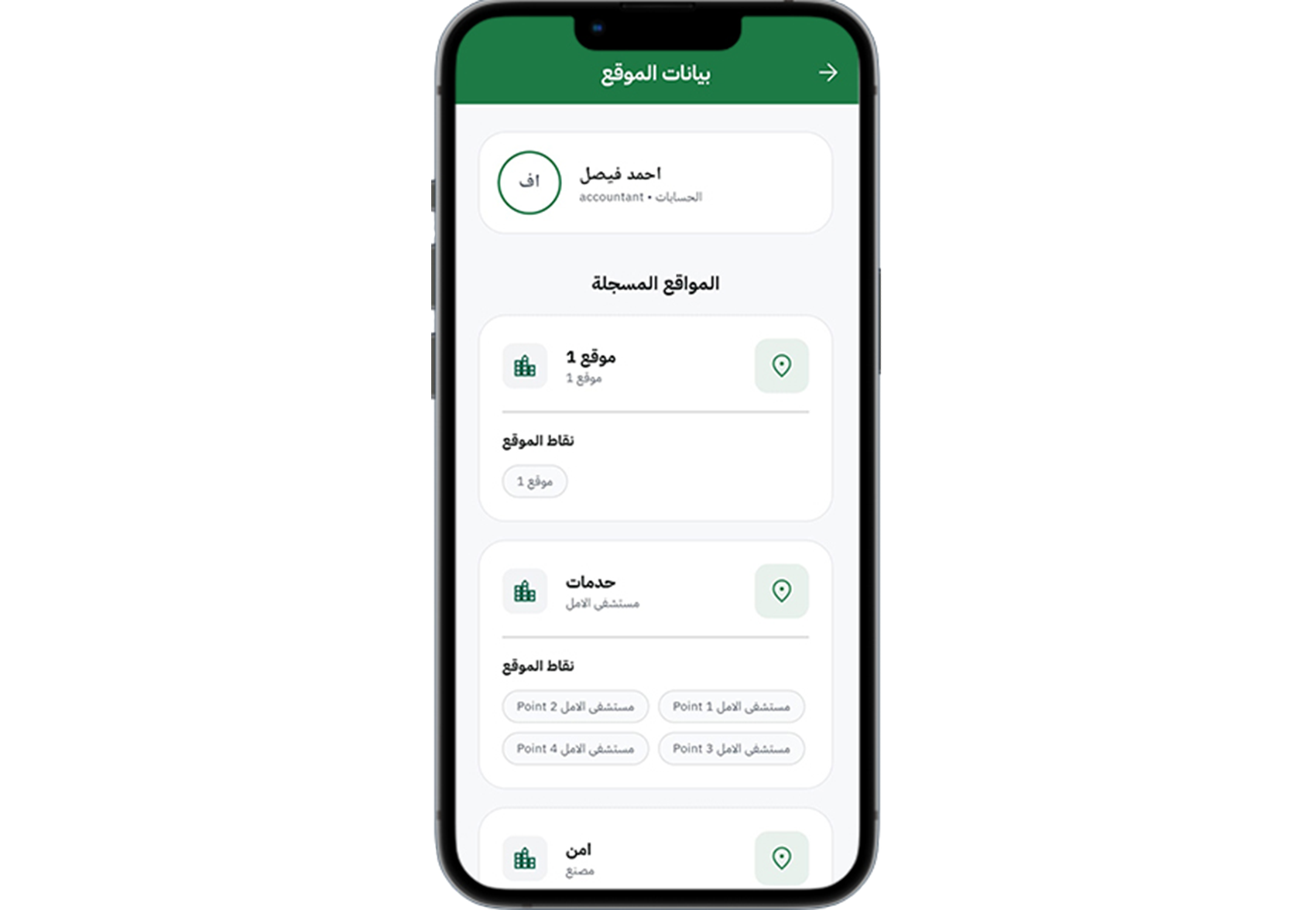
Step 1: View the employee profile
Open your profile or the employee record to check existing assigned locations.
Step 2: Access location assignments
Go to the location assignment section within the profile or settings area.
Step 3: Add additional locations
Select the new work locations you need to add for the employee.
Step 4: Confirm assignment details
Verify that each assigned location displays the correct site and attendance rules.
Step 5: Save and validate
Save the assignment and check the employee
Tip: Multiple locations are useful for employees working shifts at different branches or project sites.