The Main Page serves as your central hub in Tamam, providing quick access to essential attendance data, reports, and administrative functions.
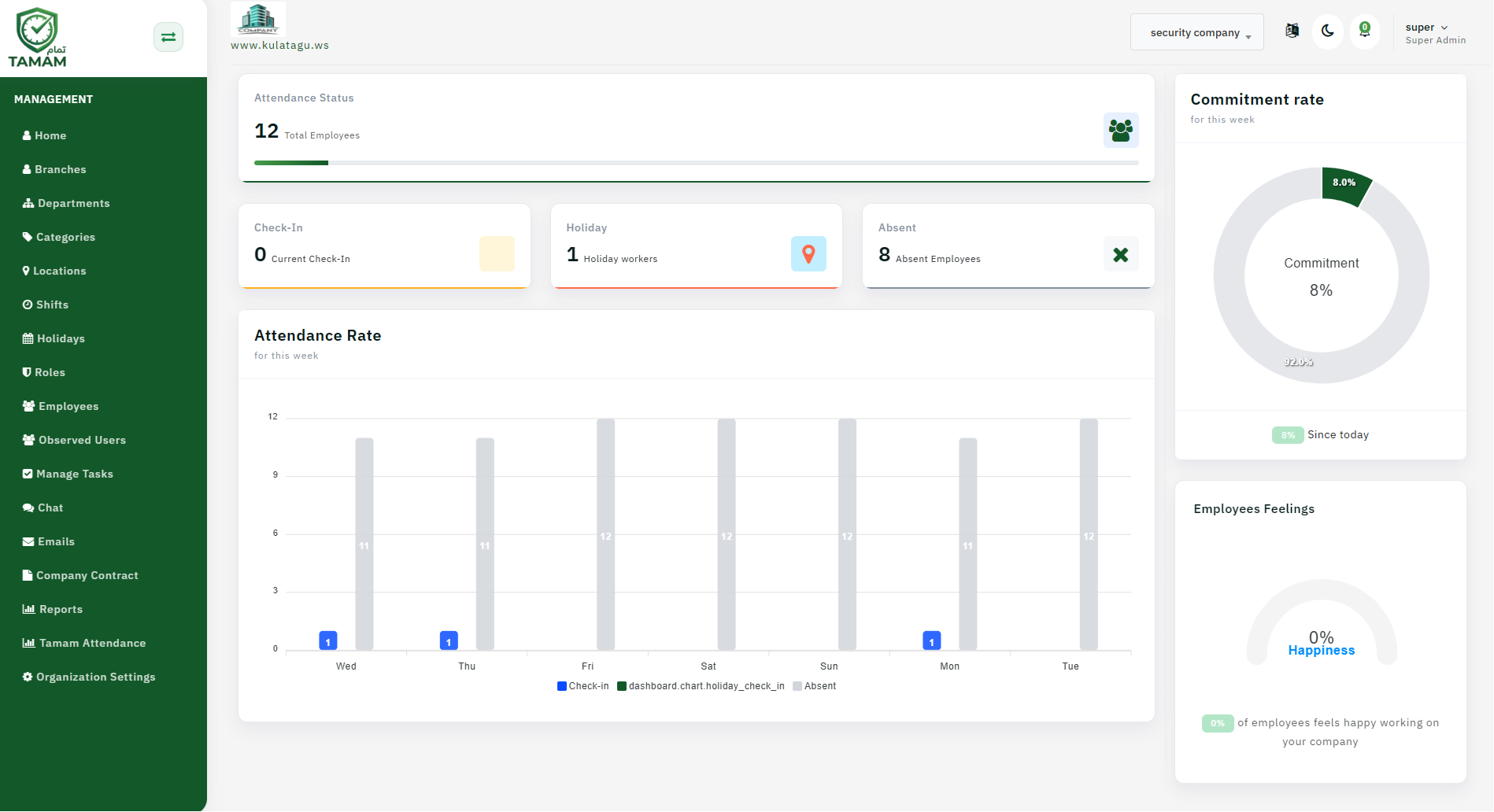
Step 1: Understand the Dashboard Layout
The main page is organized into sections for quick navigation. Key areas include daily status, upcoming reports, recent requests, and quick actions.
Step 2: Review Summary Cards
Check summary cards for today
Step 3: Access Navigation Menu
Use the left sidebar or top navigation to access detailed pages for employees, reports, settings, and configurations.
Step 4: Customize Dashboard Widgets
If available, customize which widgets appear on your main page to show the metrics most important to your role.
Step 5: Check Notifications and Alerts
Look for alert badges indicating pending approvals, overdue requests, or system updates that need your attention.
Tip: Bookmark frequently used reports or actions from the main page for faster access in your daily workflow.