This guide covers the process of creating, customizing, and downloading reports in different formats. Tamam provides comprehensive reporting capabilities to help administrators generate detailed attendance reports for various business needs.
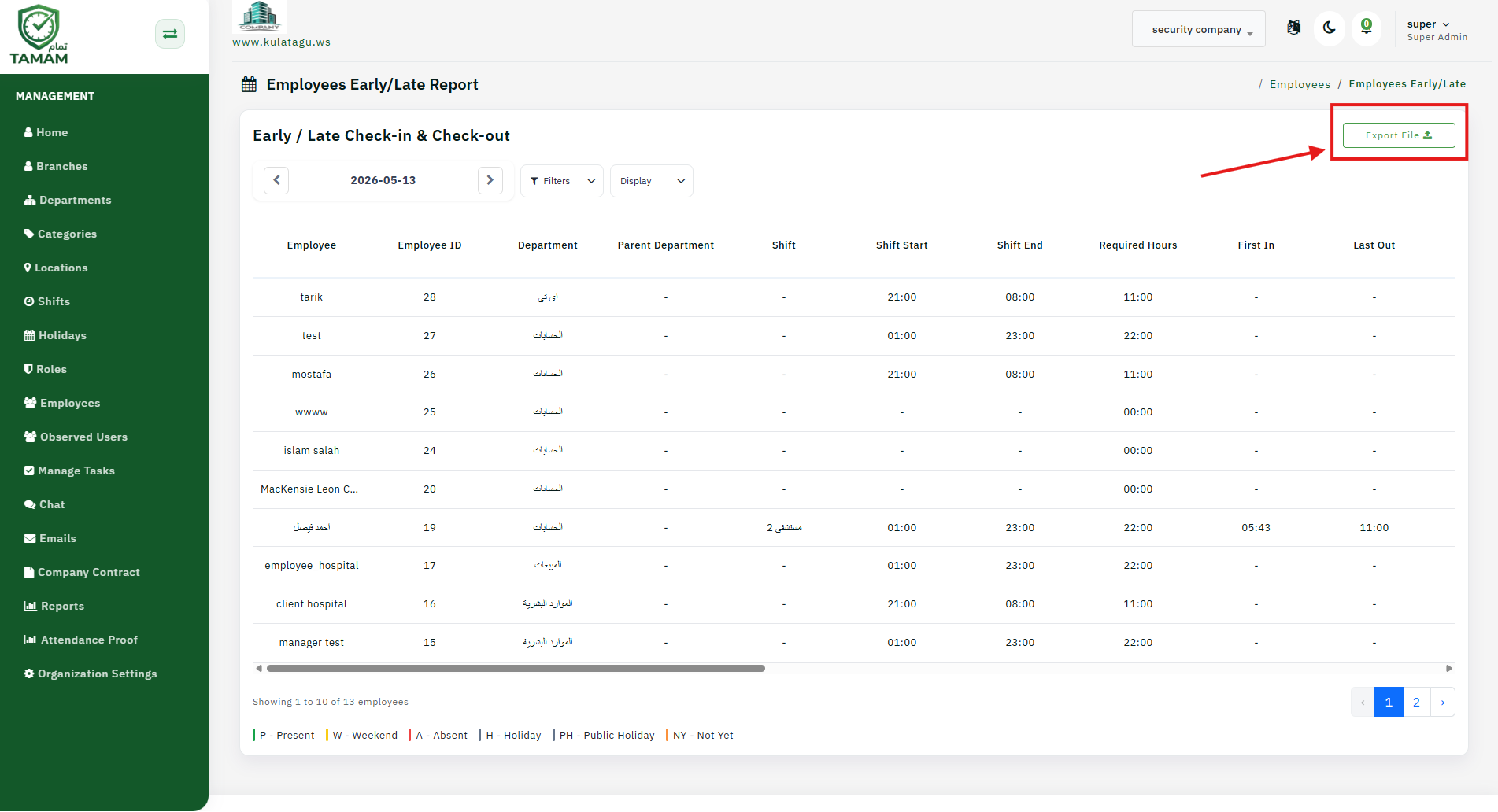
Step 1: Selecting Report Type
Navigate to the Reports section in your admin dashboard. Choose from various report types including Daily Attendance, Monthly Summary, Leave Reports, Overtime Reports, and Custom Reports. Each report type serves different analytical purposes.
Step 2: Applying Filters
Set date ranges, departments, and other filters to customize the report. You can filter by employee status, location, department, or specific time periods. Advanced filters allow you to include or exclude certain data points for more precise reporting.
Step 3: Previewing the Report
Before downloading, preview the report to ensure it contains the correct data. Check for any formatting issues or missing information. You can adjust columns, sorting, and grouping options in the preview mode.
Step 4: Choosing Export Format
Select your preferred export format. Options typically include PDF for printable reports, Excel for data analysis, CSV for data import into other systems, and sometimes HTML for web sharing.
Step 5: Downloading and Sharing
Click the download button to save the report to your device. You can also schedule automated report generation and delivery via email to stakeholders on a regular basis.
Note: Large reports may take longer to generate. Consider using filters to reduce file size and processing time. Always verify report accuracy before sharing with management or regulatory bodies.